
Access Guide
- Create an application to obtain the Appkey.
- Integrate the SDK.
- Configure SDK information.
- Start the SDK to use the customer service capability.
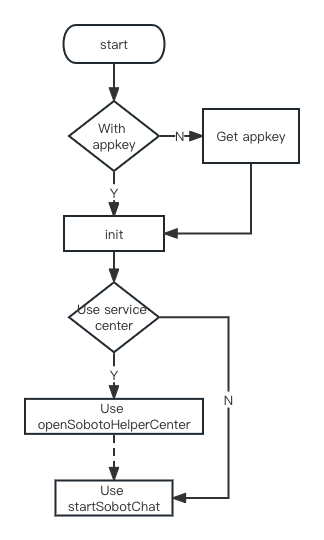
Resource Package Description
The SDK includes (SobotKit.framework, SobotCommon.framework, SobotChatClient.framework, and SobotKit.bundle), SobotDemo, and Doc-related documentation.Integration Method
Manual Integration
Download link: iOS_SDK_V6 Unzip [iOS_SDK], and add the necessary files SobotKit.framework, SobotChatClient.framework, SobotCommon.framework, and SobotKit.bundle to your project. The implementation of the Sobot iOS_SDK relies on some system frameworks. When developing an application, these frameworks need to be added to the project. First, the developer should click the project name on the right side of the project. Then, on the right side of the project name, select TARGETS -> Build Phases -> Link Binary With Libraries. After expanding Link Binary With Libraries, click the + below to add the following dependencies:- AVFoundation.framework
- AssetsLibrary.framework
- AudioToolbox.framework
- SystemConfiguration.framework
- MobileCoreServices.framework
- WebKit.framework
CocoPods Integration
Add the following to your Podfile:Quick Start
Get app_key
Log in to the Sobot Technology Management Platform to get the appkey, as shown in the picture.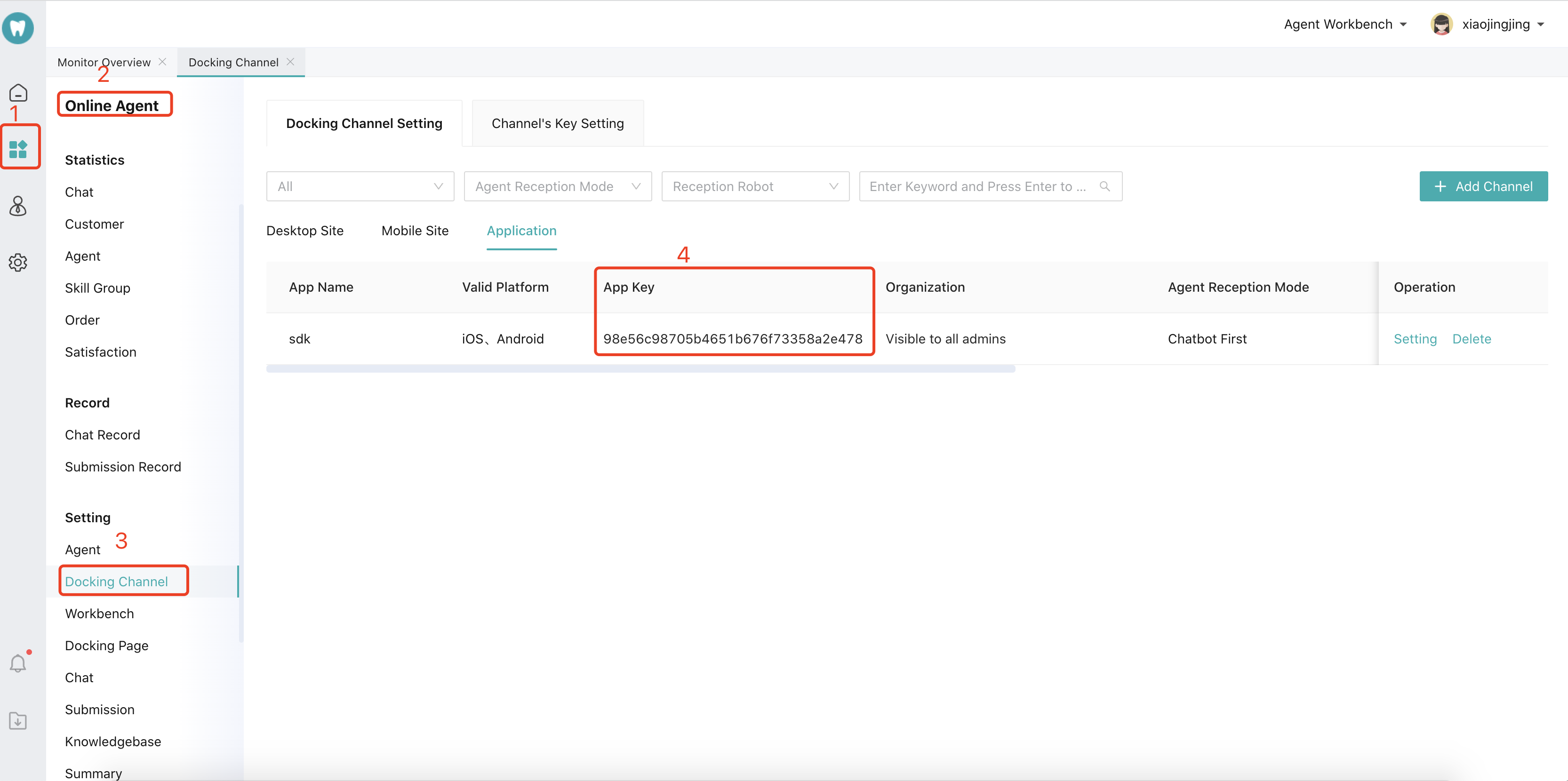
Initialize SDK
Initialize the SDK, configure the domain name and appkey. Domain Name Description:- The default SaaS platform domain name is: https://api.sobot.com.
- If you are a Tencent Cloud service, set it to: https://www.soboten.com.
- For other cases, please refer to the correct configuration of the domain name for obtaining the appkey.
Example code:
Launch Customer Inquiry Page
Customize the UI style and use Sobot for customer inquiries. Example code:
Example code:
Start Customer Service Center
Optional. If not configured, you can skip it. Example code: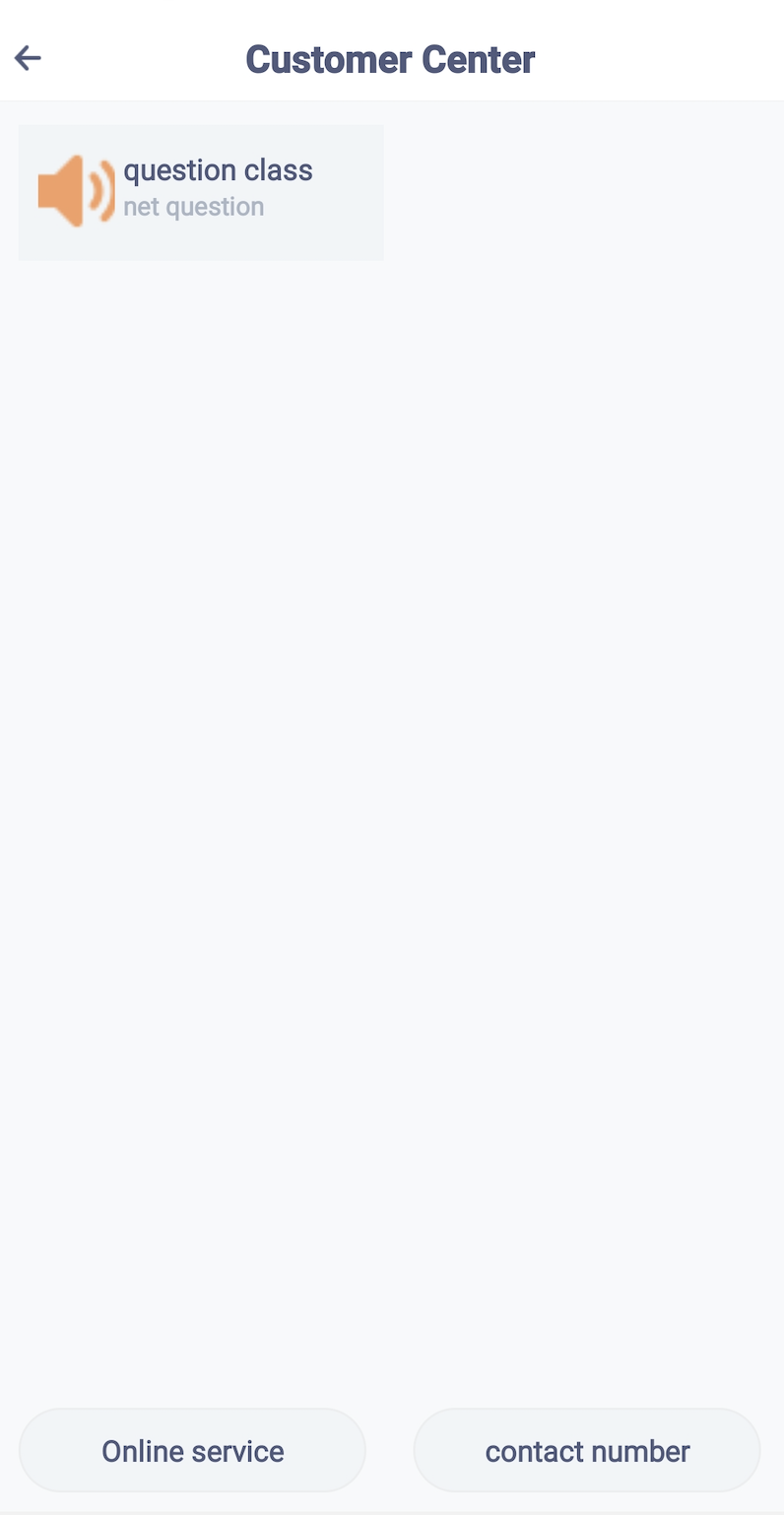
Permission Settings
If sending voice, images, videos, etc., the following permissions are required. The system will automatically judge internally. Not adding them does not affect the use of other functions.Advanced Features
Customer Service Configuration
1. Configure Robot Voice
Based on the needs of your own business, you can configure the following initialization parameters to control the access mode:2. Custom Transfer to Human Agent Event
Customize the manual transfer callback event to intercept the SDK’s manual transfer event. Use it to redirect to your application page for dynamically handling the manual transfer function, and configure parameters such as skill group ID/product information. [Note: If this method is implemented, the SDK’s transfer-to-human event will be handed over to external control. You can jump to a custom skill group page or switch product information, etc. The SDK will no longer perform the transfer-to-human operation. You need to call the transfer-to-human API turnServiceWithGroupId: to implement the specific transfer-to-human operation.]]3. Connect to the designated skill group
Get the skill group ID in the background: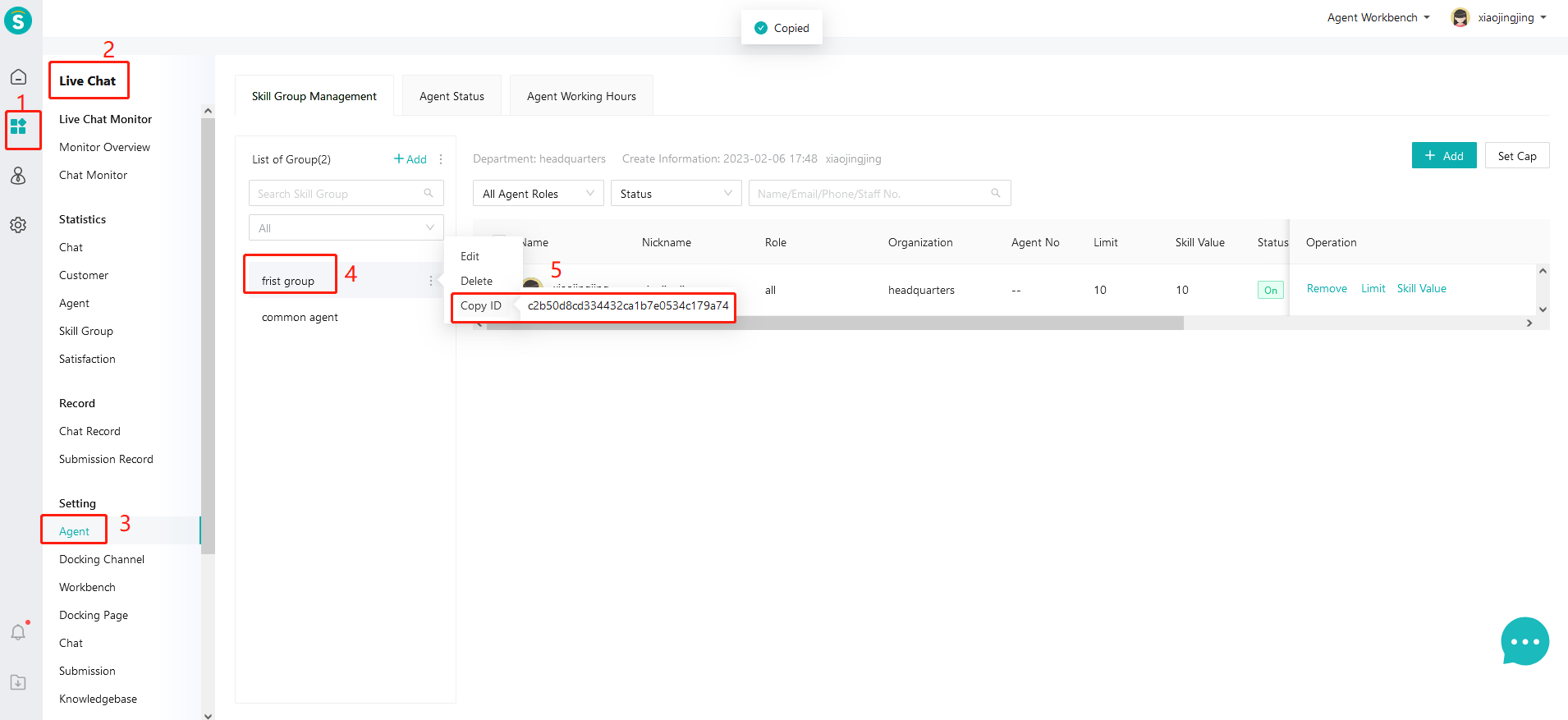 Configure the skill group ID in the SDK code:
[Note: This field is optional. If a skill group ID is provided, the SDK will skip the skill group selection dialog when transferring to manual service and directly route to the specified skill group.]
4. Connect to the designated customer service representative
Get the specified customer service ID in the background: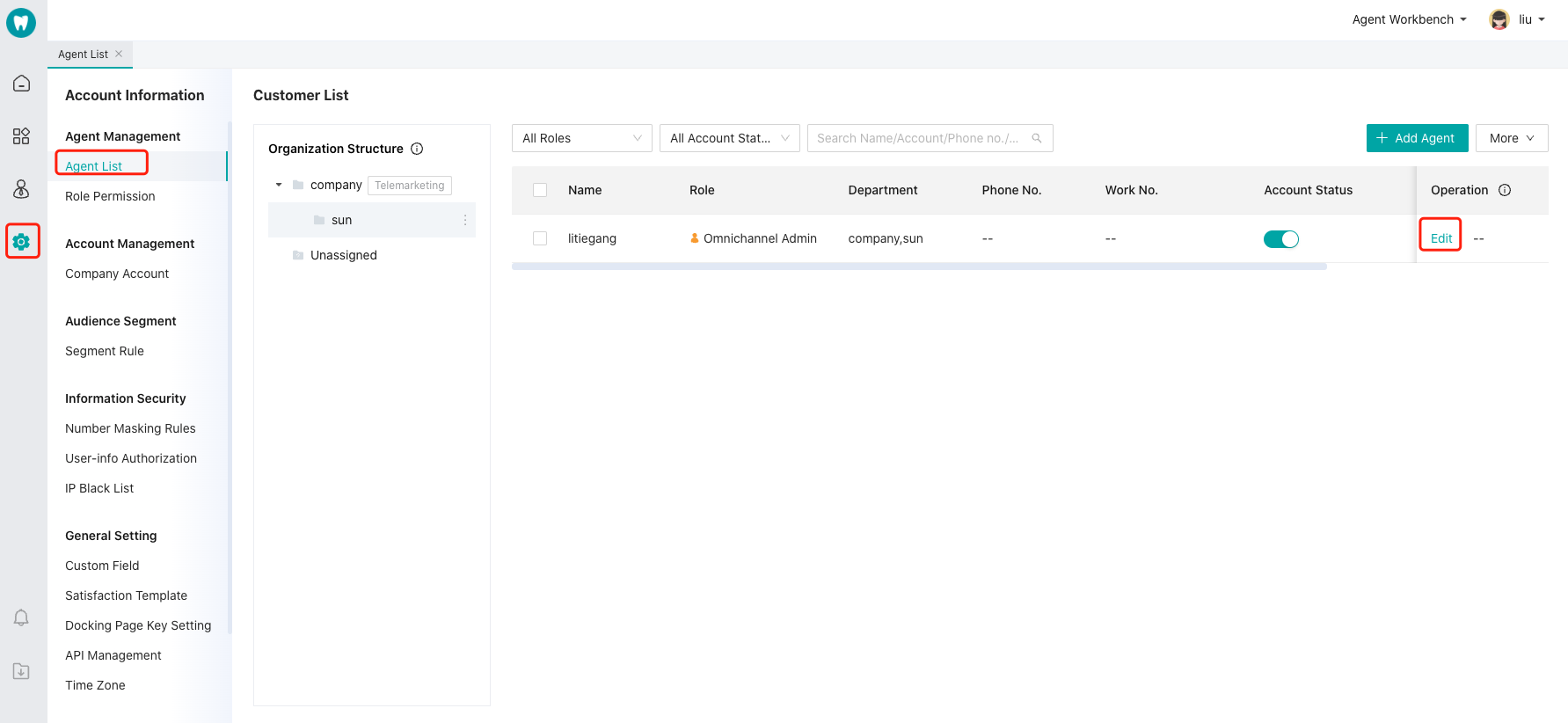
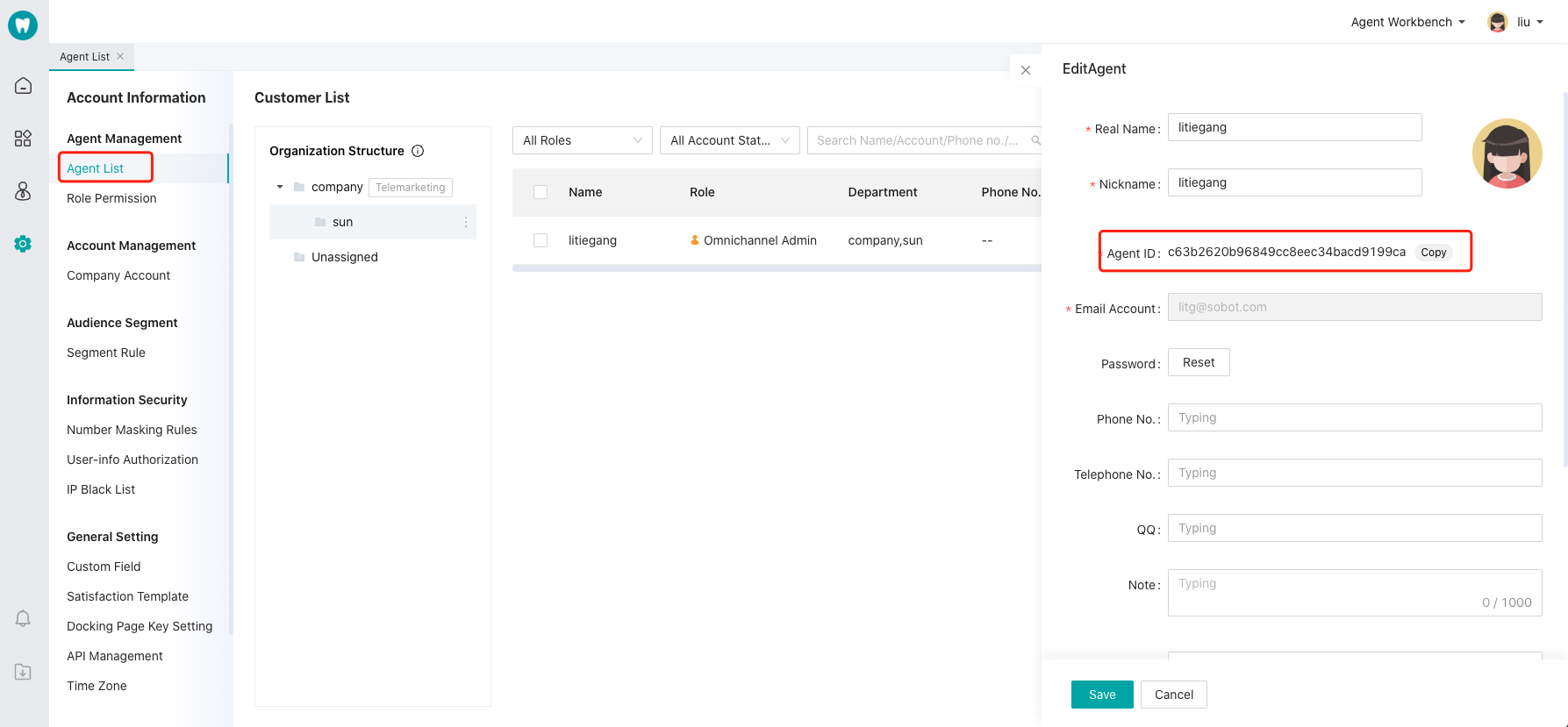 Set in the SDK code:
5. Set User Custom Profile and Custom Fields
Developers can directly pass in these user details for customer service to view. Configure the fields you need to display on the workbench by yourself. The configuration method is as shown in the figure below: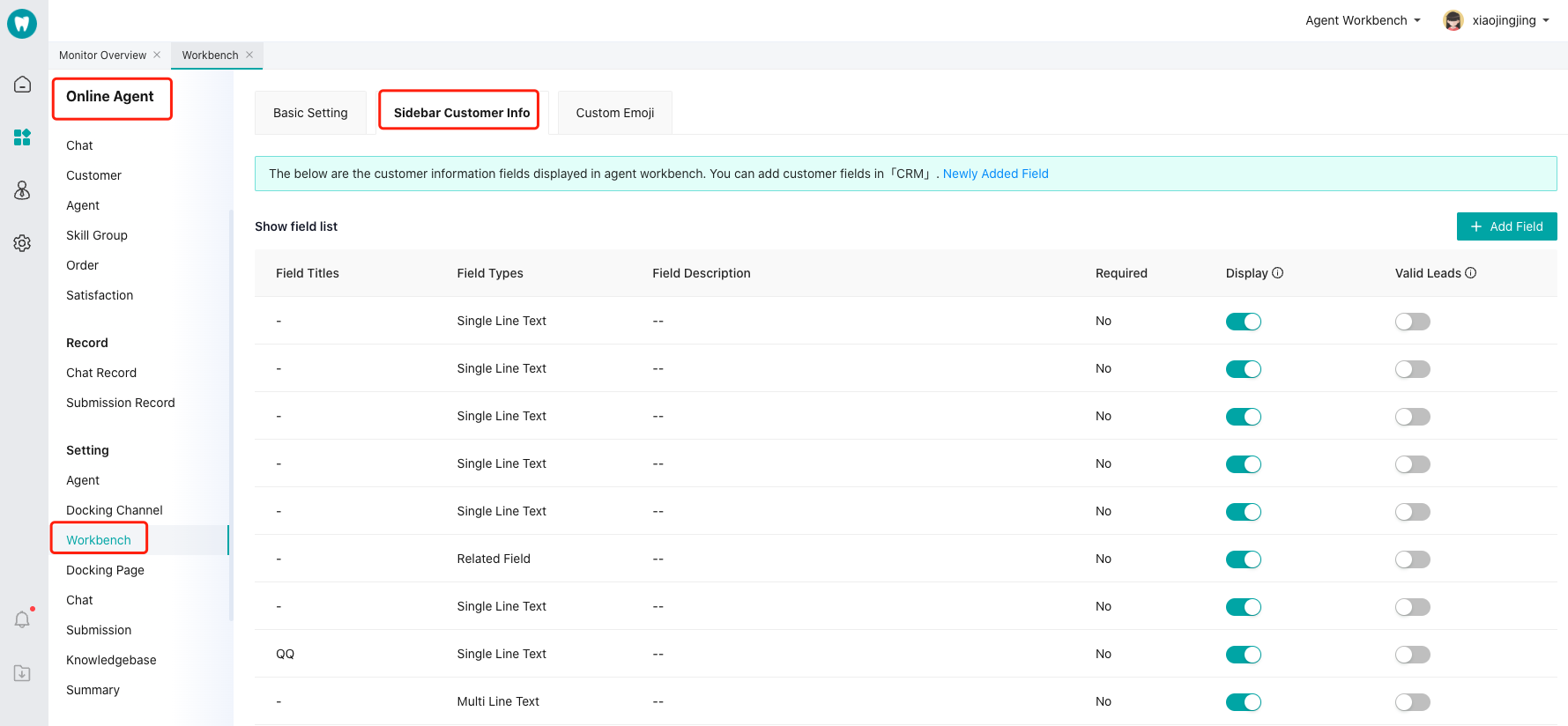 Custom fields with fixed keys
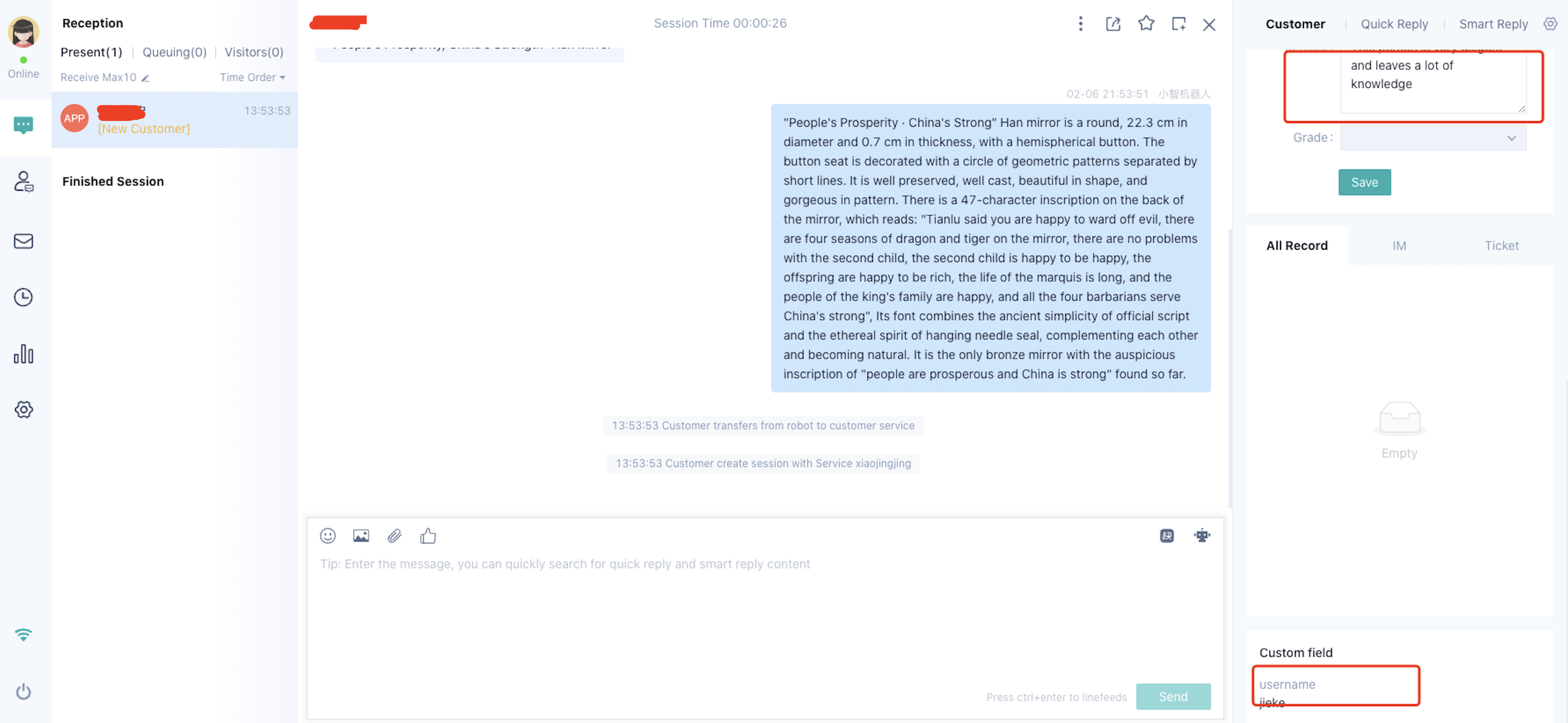
6. Set up priority access for designated customers in the queue
The SDK can set the current user’s queue priority. When this user enters the queue, they will be served first.7. Set Service Summary Custom Fields
The SDK can configure custom fields for service summaries, enabling customer service to create session summaries more quickly.- Get Custom Field ID
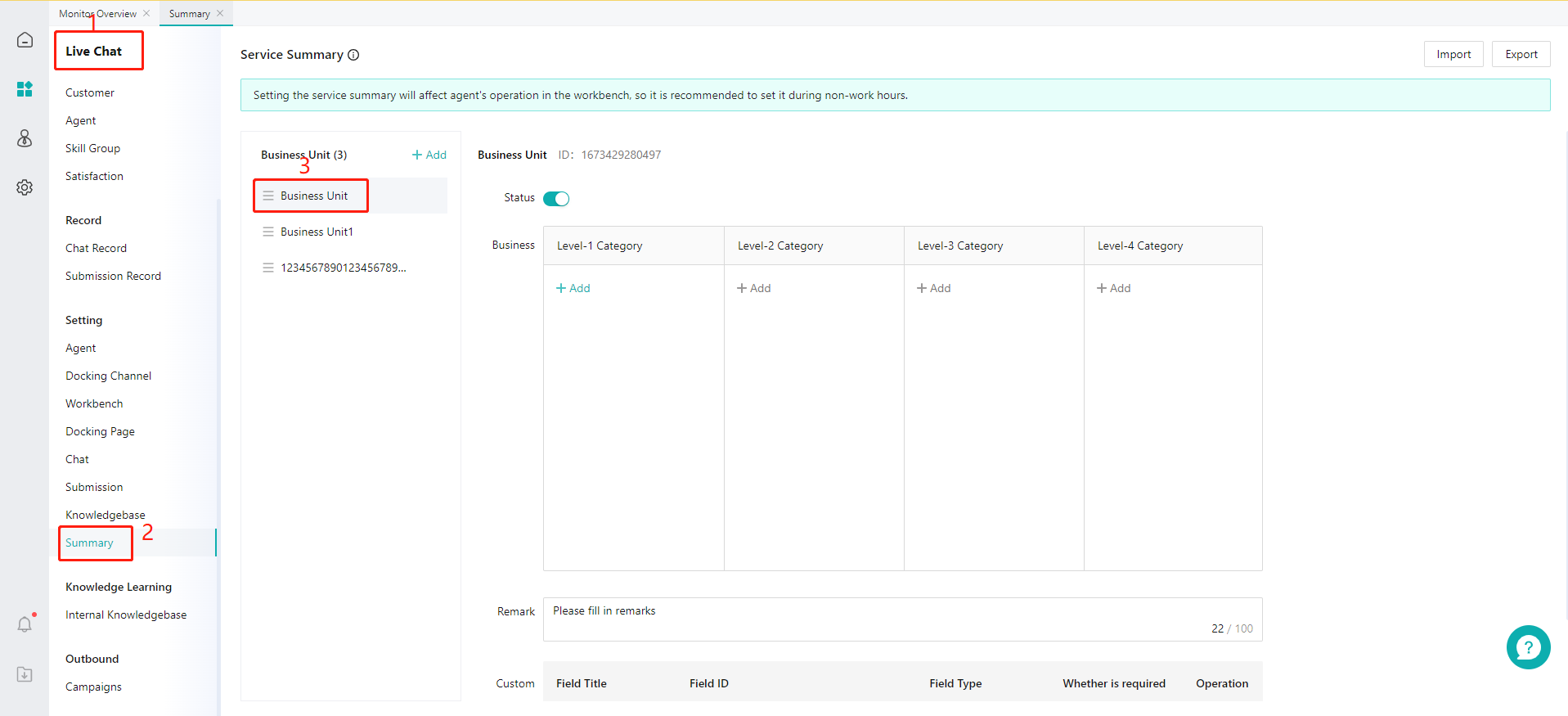
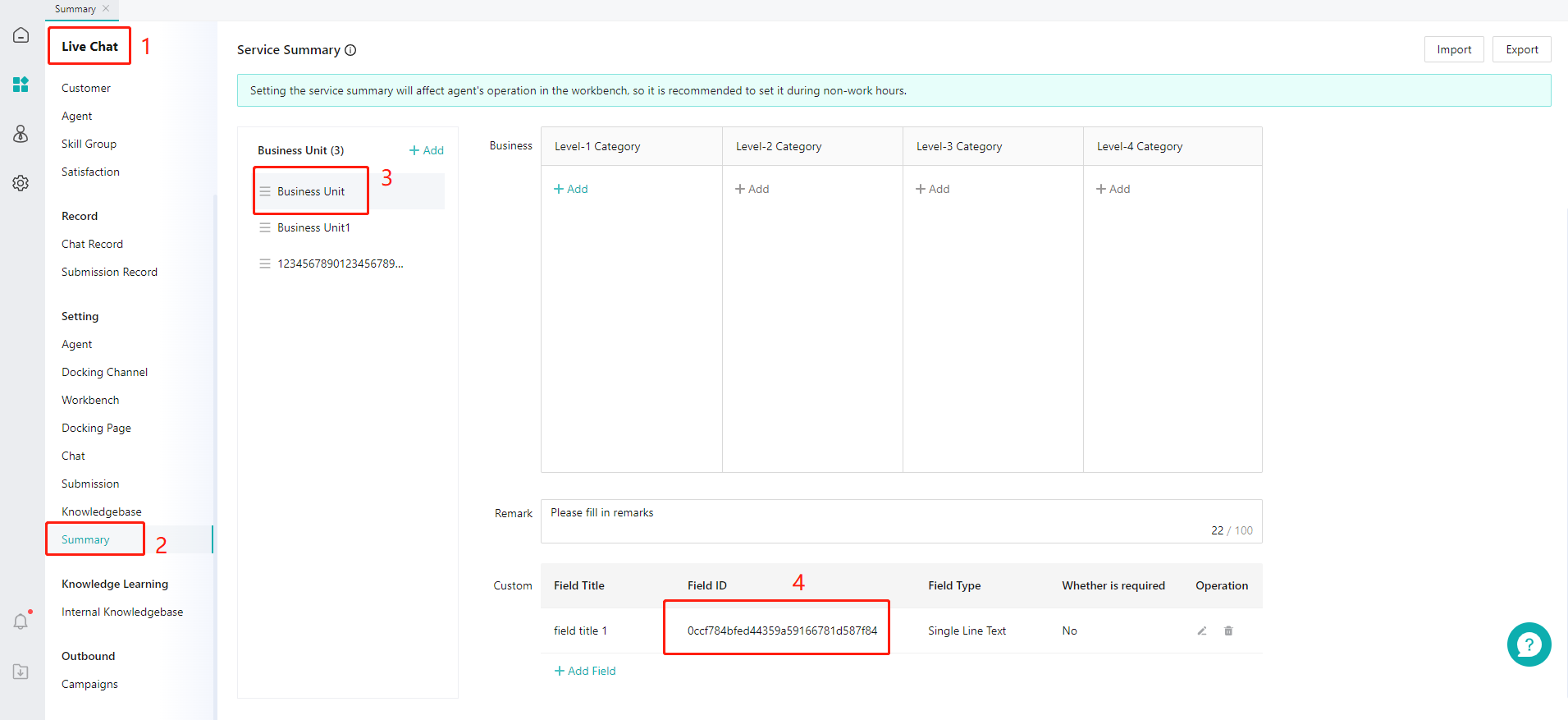
- Set custom fields for service summary (Support transferring to human agents with service summary parameters)
8. Set Multi-turn Conversation Interface Parameters
When using the multi-round conversation feature, we pass two fixed custom parameters, uid and mulitParams, to each interface. The uid is the unique identifier for the user, and mulitParams is a custom field in JSON string format. If the user has integrated these two fields, we will pass them back to the third-party interface. If not, we will pass empty fields.9. Set VIP level and user tags
Conversations and Messages
1. Message Push Notifications
[Note: If you need the SDK push function, please refer to the following message notifications and registration push related code. If your project does not need it, please ignore.]- When generating the appkey, upload the push certificate (.p12 format). The exported certificate must have a password;
- Push notifications are only effective for manual conversations. The robot answers directly without push notifications. When local IM communicates normally, it will directly use the IM channel and will not send APNS push notifications.
2. Set whether to enable message notifications
When the user is not on the chat interface and receives a message from customer service, the app can provide reminders in the notification bar or at the chat entry. The notification bar reminder can display the content of the most recent message.3. Offline Messages
Offline Message Settings4. Unread Message Count Operations
5. Send Location Message
Send location information. This method can only initiate a location call when the initialization link is received and the URL is listened to as sobot://sendlocation. Otherwise, the sending may fail.5. Link Interception
Set the message link listenermessagelinkBlock to intercept link redirection. If the block returns YES, it means the current link event is handled by itself, and the internal system will not display the link.
6. Listen for changes in the current chat mode
You can do this by initializing the previous code:7. Regular expression for replacing mobile or landline numbers in messages
Change the rules for identifying your own phone number:8. Replace the regular expression for identifying hyperlinks in chat messages
Change the recognition rules for hyperlinks in messages:9. Hide Time Prompts in the Message List
10. Configure Automatic Message Content After Access
You can pre-configure related consultation questions. After entering the chat page, a consultation will be automatically initiated in the customer’s identity.11. Configure Sending Product Cards
Product inquiry information supports sending message cards directly only in manual mode. Configure the following information in ZCKitInfo.h, and pass it in when launching the page: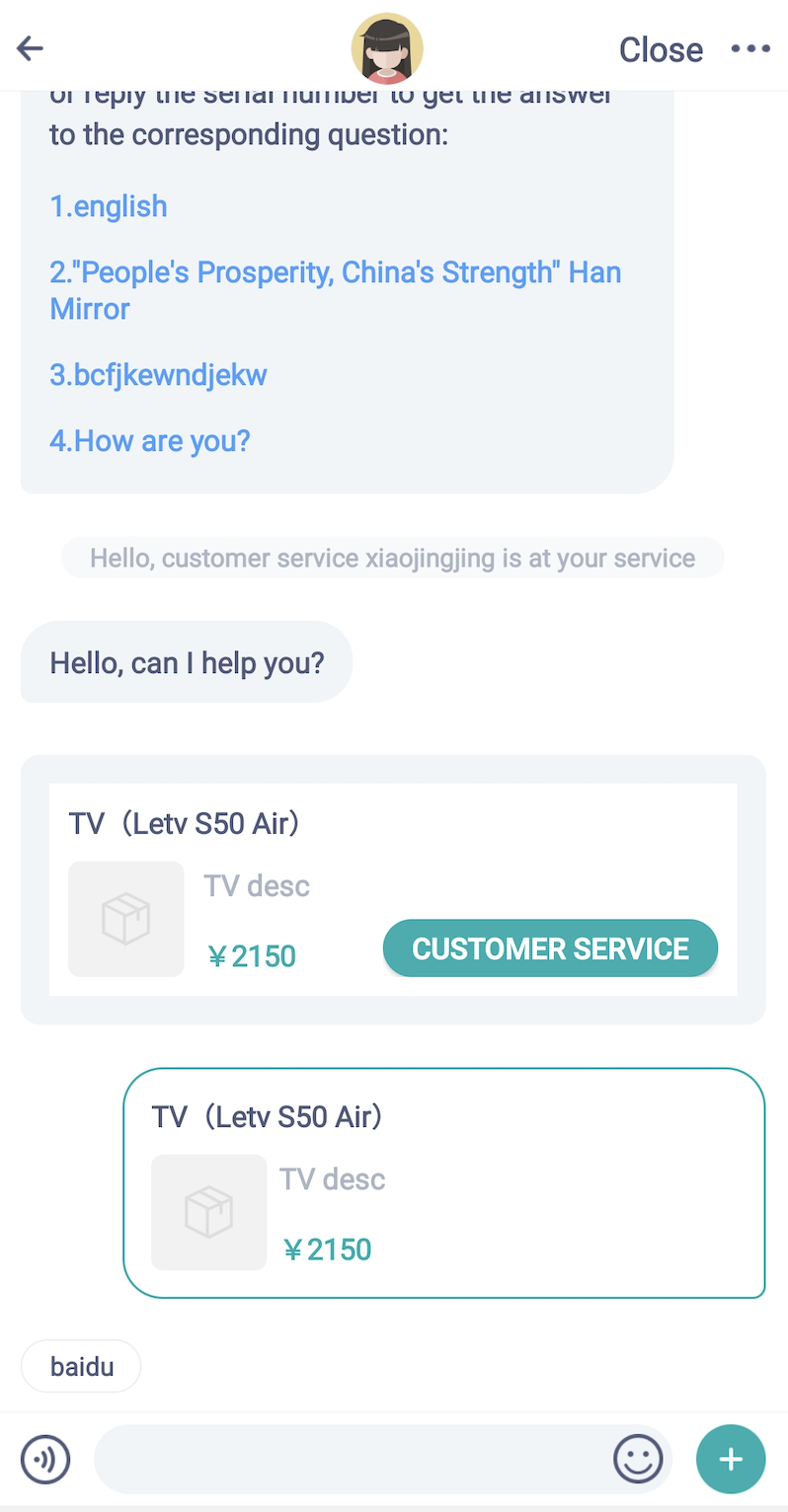
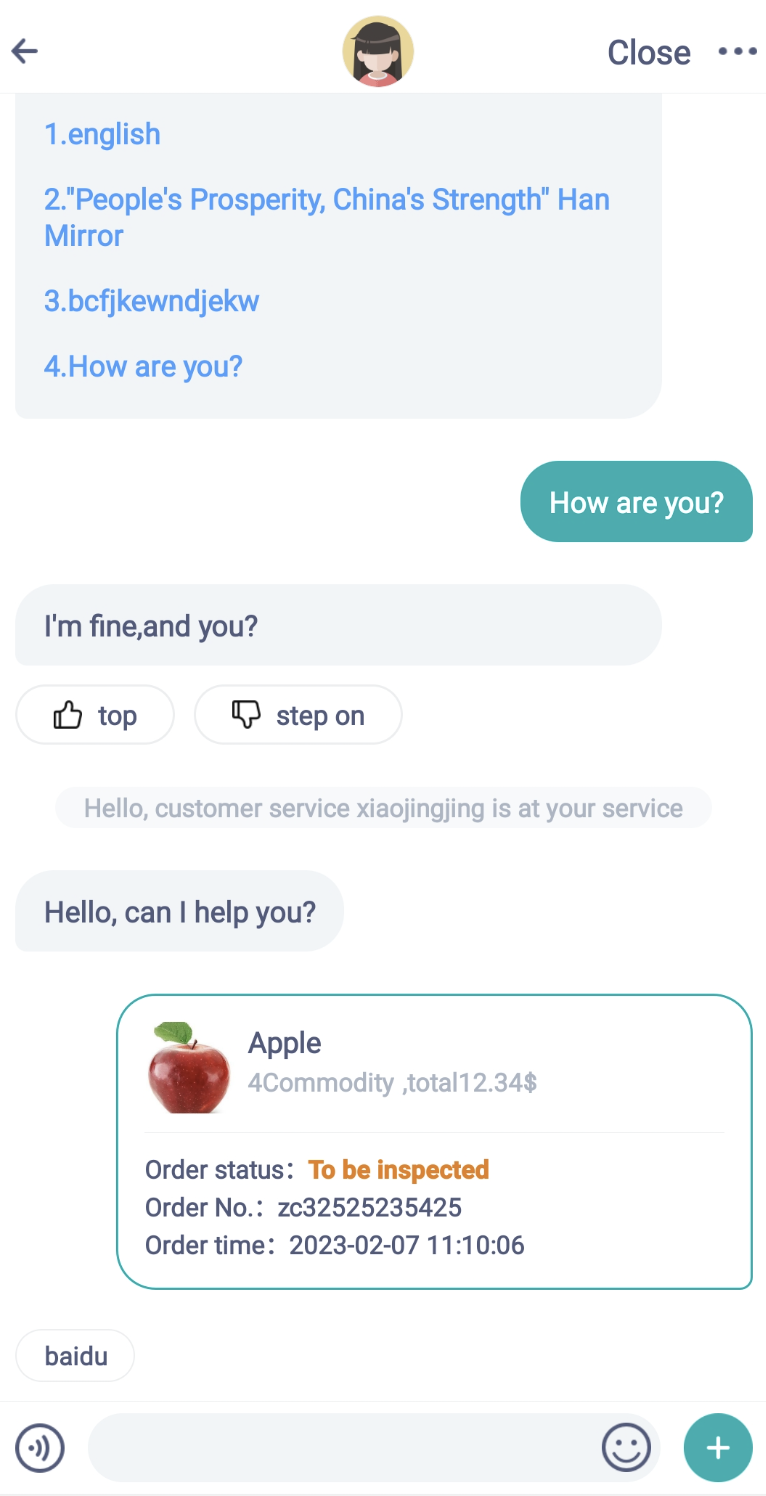
12. Order Card
The SDK can send custom order information, but this is only supported in manual mode. If you have this requirement, you can use the following method to set it up: Configuration Button:Return YES to indicate event interception, and let the user handle it manually. Returning NO means the event is not intercepted and will be handled internally by the Sobot SDK.
12. Send custom cards to the conversation record to recommend to customers in a systematic way
Custom Card Parameter Description Document13. End Session
Not required, the session will automatically stay connected and disconnect.Other Function Configurations
1. Customize the display time range for chat history
If you want to set users to only see chat records within xx days, you can call the following method to make the setting:2. ”+” Panel Menu Extension
In the customer service chat interface, after clicking the ”+” button, a menu panel will appear. You can add menus as needed. The code is as follows:3. Call up the dialing interface API
4. Wisdom Tooth Log Display Switch
5. IOS Multi-language Support
Currently, the SDK supports two languages: English and Chinese. The language will automatically switch and adapt based on the current phone language. If the current phone language is not recognized, it will default to Chinese. Language files are unified in the SobotKit.bundle file. If you need to add a new language package, place the supported language file in the corresponding language directory. For example: English path: SobotKit.bundle/en_lproj/SobotLocalizable.strings, Chinese path: SobotKit.bundle/zh-Hans_lproj/SobotLocalizable.strings; [Note: The language folder name is the current language name followed by _lproj, such as zh-Hans_lproj, en_lproj]6. Set Dark Mode
Starting from version 2.8.5, dark mode is supported. By default, it adapts automatically based on the phone’s system settings; it can also be forcefully specified for use, with the configuration as follows:7. Time Zone Adaptation
Starting from version 2.8.9, it is supported by default. The system uses Beijing East Eight Zone standard time. If dynamically adapting based on mobile phone time, configure the following code:8. Wisdom tooth partial function page click return and event listening (record only, do not intercept), you can add your own logic (e.g., tracking points)
9. Security Verification
- Function location: Online channel settings - Channel security settings - Security key settings - Check “Effective scope (APP)”.
- After enabling the APP “Security Key” function, the SDK channel must pass the partnerid parameter. When integrating, add the parameters “sign” and “create_time”. Here, sign = “MD5(app_key + partnerid + secret + create_time)”, createTime is a Unix millisecond timestamp; secret is a 32-character string, and create_time is a millisecond-level timestamp.
- After passing parameters, Sobot will decrypt the sign and verify whether the passed partnerid matches the partnerid in the sign. If they match, the system will connect to Sobot normally. If they do not match, the connection will fail. If the customer does not pass the partnerid or sign, it will be considered an illegal user, and the connection will fail. If the create_time differs from the current time by more than 5 minutes, it will be considered an illegal user, and the connection will fail.
- The function of enabling and disabling the “Security Key” in the APP takes effect in real time.
Parameter Description
ZCKitInfo Class Description (UI Related Configuration)
You can reset every time you start the Sobot page.1. UI Logic Related
2. Font Related
3. Background Color Related
4. Text Color Related
5. UI Extension
Description of the ZCLibInitInfo Class
This object will be automatically created after initialization. You can use it directly afterwards.1. ID Related:
2. Customer service workstation display:
3. Related Talking Points:
4. Conversation Page Related:
5. Others:
Frequently Asked Questions
FAQ: Please click the link to access the intelligent robot and enter your question.